
How to organise notes with folders, tags and search
You organise notes in Loam with folders and with tags that you type into the note itself, such as #work or #projects/garden. Use either or both: a note sits in one folder and can carry any number of tags. Then pin the notes you need every day, archive the ones you’re done with, and search for the rest. The steps below cover the desktop and web apps and iPhone, iPad and Android. If you’re new to the editor, start with how to write and format notes.
File notes in folders
Folders hold notes and other folders, up to eight levels deep. Folders are free on every plan.
In the desktop and web apps, the sidebar lists Folders under your library:
- Click the New folder button next to Folders and type a name. Names can’t contain a slash, and two folders in the same place can’t share a name.
- Right-click a folder for New note, New subfolder, Rename, Move to… and Delete folder….
- To file a note, drag it onto a folder, or right-click it and choose Move to… and pick the folder. Move to… also takes a note out of folders.
A folder’s list shows the notes directly inside it. Notes in its subfolders stay in those subfolders.
On iPhone, iPad and Android, Folders is in the library. Touch and hold a folder for its actions, and use Move to… in a note’s menu to file it.
Deleting a folder deletes nothing else. Its notes and subfolders move up into the folder above it, or to the top level.
Creating, renaming, moving and deleting folders needs a connection. Moving a note into a folder works offline and syncs when you’re back online.
Share a folder
With Loam Pro, right-click a folder you own (touch and hold it on mobile) and choose Share…. Each person you invite gets the role you pick on every note in the folder and its subfolders, including notes you add later. They see it under Shared with me. Only you add notes to it or change how it’s organised. To see how roles work, read how to share a note and edit it together.
Tag a note
Type # followed by a word anywhere in a note. The tag appears in the sidebar straight away.
- A simple tag looks like
#reading. - A nested tag uses a slash:
#projects/garden. Each part becomes its own place to browse, so#projectslists every project note and#projects/gardenlists only the garden ones. - A tag with spaces ends with another
#, as in#reading list#.
Tags ignore case, so #Work and #work are the same tag. A # followed by a space isn’t a tag, which is why # Heading stays a heading. A tag made only of digits, such as #2026, isn’t a tag either.
Because tags are part of the text, you rename or remove one by editing it in your notes. Loam has no separate tag settings.
Browse by tag
In the desktop and web apps, the sidebar lists your library first, then Tags:
- Click a tag to see its notes, including notes with tags nested under it.
- Click the arrow next to a tag to show or hide the tags inside it. Arrow keys move through the list too.
- Use the sort button next to Tags to order them By name or By note count.
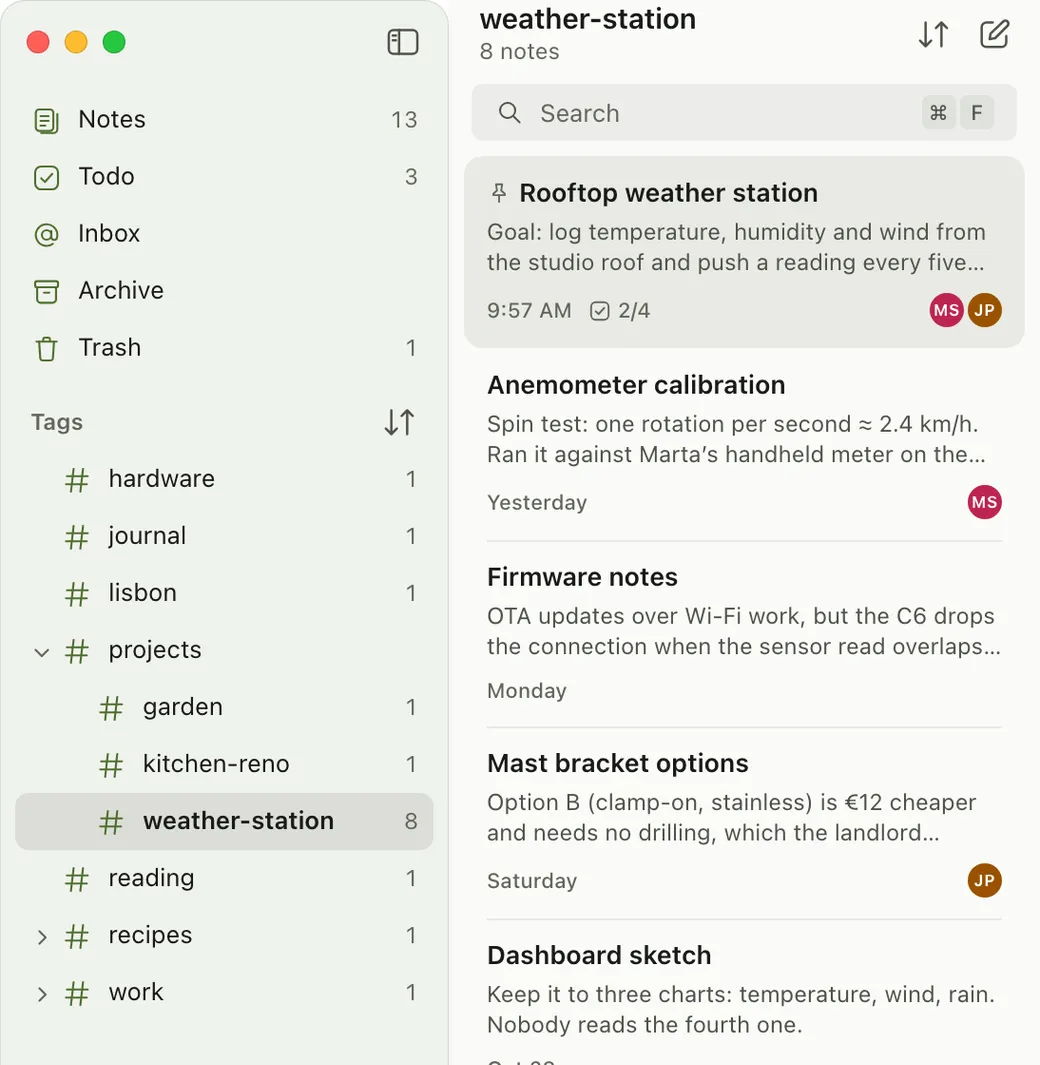
When you create a note with a tag open, it starts with that tag, so it’s filed already. On iPhone and iPad, tags are listed under Tags in the library. On Android, they have their own Tags tab.
Use the library views
The sidebar’s top section has a view for each kind of note:
- Notes holds everything that isn’t archived or in the Trash.
- Todo lists notes that still have unchecked todos.
- Inbox lists notes other people have shared with you (desktop and web apps only).
- Archive keeps notes you’ve finished with but want to keep.
- Trash holds deleted notes until you restore them or delete them for good.
Mobile has Notes, Todo, Archive and Trash. In the desktop and web apps, the sort button above the note list orders it by Date edited, Date created or Title. The mobile apps sort by last edit. Pinned notes always stay at the top.
Pin, archive or trash a note
In the desktop and web apps, right-click a note in the list, or open the More menu (•••) at the top of the note:
- Pin to top (or Unpin) keeps a note above the others. The shortcut is ⇧⌘P (Ctrl+Shift+P).
- Archive (or Unarchive) moves a note out of the main list. The shortcut is ⌃⌘A on a Mac and Ctrl+Shift+A on Linux.
- Move to Trash deletes it. Pressing Delete with a note selected in the list does the same.
Archive and Move to Trash show a message with an Undo button for a few seconds.
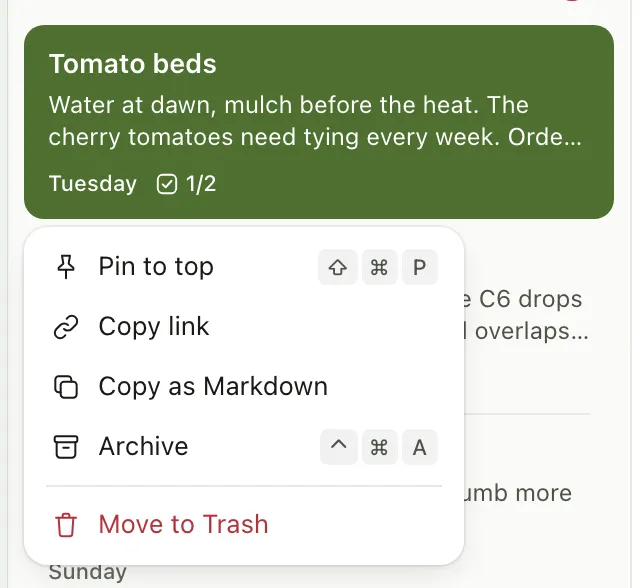
On iPhone, iPad and Android, long-press a note in the list for Pin, Archive and Move to Trash. The same actions are in the More menu inside the note.
Only a note’s owner can pin, archive or trash it, so on a note someone shared with you, those actions stay with them.
Get a note back from the Trash
- Open Trash.
- Right-click the note and choose Restore from Trash. On mobile, long-press it and tap Restore. A note you open in the Trash also shows a Restore button.
- To remove it for good, choose Delete permanently… and confirm. It disappears from every device and can’t be undone.
Search your notes
Press ⌘F (Ctrl+F), or click the Search field above the note list, and start typing.
- Search looks inside the view you’re in. With a tag open, it searches that tag. If nothing matches, Search all tags widens it.
- Filters appear under the field: Has todos, Shared, Include archived and a date menu (Any time, Past week, Past month).
- The count under the filters shows how many notes and matches it found, and the matching words are highlighted.
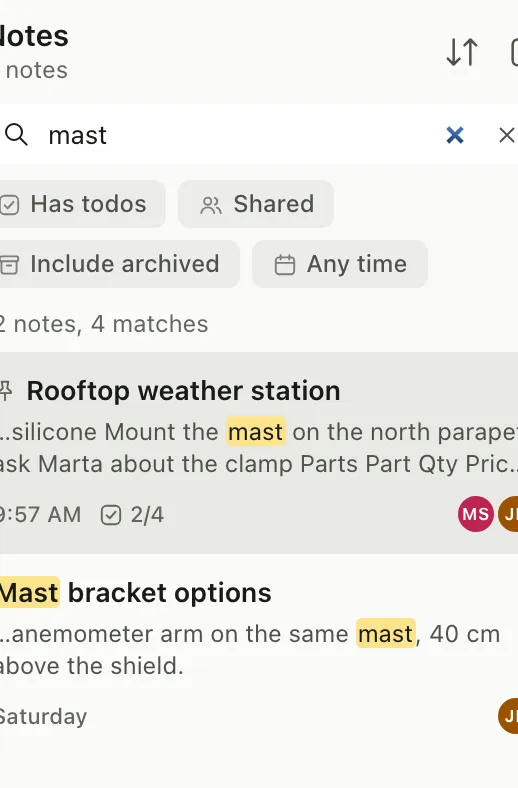
The desktop and web apps match exactly what you type, ignoring case. The mobile apps match each word separately, and a note must contain all of them. Searching for a tag name such as #garden works on both, because tags are part of the text.
In the desktop and web apps, Find in note (⌥⌘F, or Ctrl+Alt+F) searches only the open note. The command palette (⌘K outside the text) jumps to a note by title, or to a view such as Archive or Trash.
What’s free
Tags, search, pinning and archiving are all on the Free plan. To keep the same library on more than one device, you need sync, which comes with Loam Pro.
Related
Get new posts in your feed reader. Subscribe with RSS