
How to write and format notes in Loam
Loam’s editor is plain Markdown that formats as you type. Type ## at the start of a line and it becomes a heading; put ** around a word and it turns bold. The characters stay in the text, so every note is a standard Markdown file that any other Markdown app can read. Here’s how to write, format and link notes, with the shortcuts and settings for each Loam app.
Start a note
- Create a note with ⌘N on a Mac or Ctrl+N on Linux. In the web app the shortcut is ⌘⌥N (Ctrl+Alt+N), because the browser keeps ⌘N for itself. You can also use the New note button above the note list.
- On iPhone, tap New note in the bottom toolbar. On iPad it’s in the header, and on Android it’s the round button in the corner.
- Type the first line. That line is the note’s title, so there’s no separate title field. Start it with
#if you want it to look like a heading.
Loam saves as you type, so there’s no Save button.
Format as you type
Write the Markdown you already know and the editor styles it in place:
| You type | You get |
|---|---|
# to ###### |
Headings, levels 1 to 6 |
**bold** and *italic* |
Bold and italic text |
==highlight== |
Highlighted text |
~~strike~~ |
Strikethrough |
<u>underline</u> |
Underlined text |
`code` |
Inline code |
[text](https://…) |
A link |
- [ ] at the start |
A todo with a checkbox |
> at the start |
A quote |
| three backticks and a language | A code block with syntax colours |
Heading markers move into the margin, so every line keeps the same left edge. Inline markers such as ** fade once the cursor leaves them. That comes from a setting called “Hide Markdown until the cursor touches it”, which is on by default. Turn it off in Settings › Editor if you’d rather see every marker all the time. On a computer you can also toggle it with ⌘⌥⇧M (Ctrl+Alt+Shift+M).
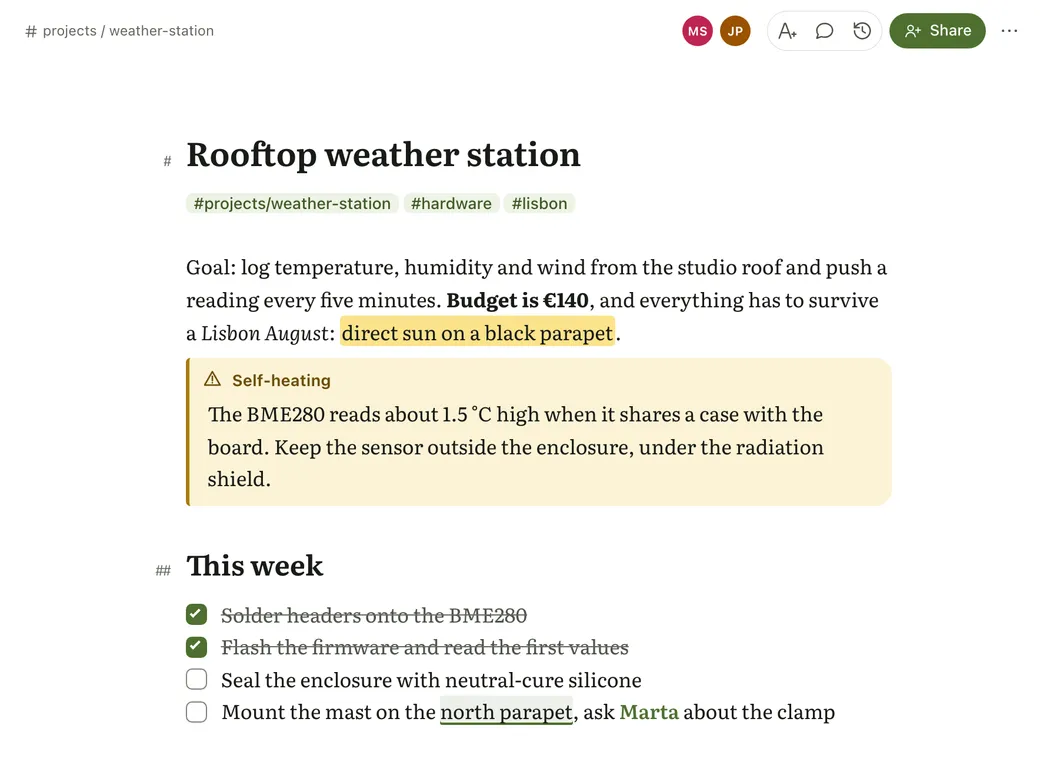
Use the Format menu and keyboard shortcuts
In the desktop and web apps, the Format button in the note toolbar (the A with a small plus) lists every command next to its shortcut. A formatting toolbar also floats at the bottom of the note. Press Alt+F10 to move focus to it, or hide it in Settings › Editor › Show formatting toolbar.
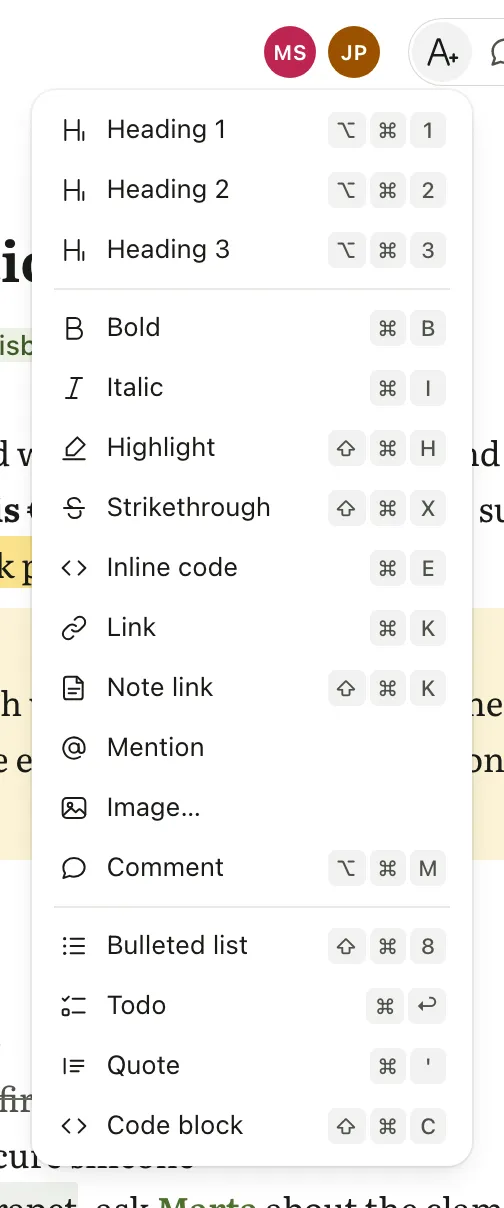
These are the default shortcuts. On Linux, use Ctrl for ⌘ and Alt for ⌥.
| Command | Mac |
|---|---|
| Bold | ⌘B |
| Italic | ⌘I |
| Underline | ⌘U |
| Strikethrough | ⇧⌘X |
| Highlight | ⇧⌘H |
| Inline code | ⌘E |
| Link | ⌘K |
| Note link | ⇧⌘K |
| Heading 1 to 6 | ⌥⌘1 to ⌥⌘6 |
| Body text | ⌥⌘0 |
| Bulleted list | ⇧⌘8 |
| Numbered list | ⇧⌘7 |
| Todo | ⇧⌘T |
| Check off a todo | ⌘Return |
| Quote | ⌘’ |
| Code block | ⇧⌘C |
Todo has no shortcut in the web app, because browsers use that key to reopen a tab. Every shortcut can be changed in Settings › Keyboard shortcuts.
In the note’s text, ⌘K inserts a link. Anywhere else it opens the command palette, where you can type the name of any command or note.
On iPhone, iPad and Android
A format bar sits above the keyboard with Heading, Bold, Italic, Highlight, Todo, Tag, Note link, Mention, Code and Image. Tap Heading again to step through heading 1, 2 and 3 and back to body text. The last button hides the keyboard: it’s labelled Dismiss keyboard on iPhone and iPad, and Done on Android.
Add tables, callouts and code
For a table, choose Table in the formatting toolbar to get an empty two-column table, or write a GitHub-style table with pipes. Tab and Shift+Tab move between cells, and the table’s Markdown button opens the raw text.
A callout is a quote that starts with > [!NOTE], optionally followed by a title. The types are NOTE, TIP, IMPORTANT, WARNING and CAUTION; the yellow “Self-heating” box in the screenshot above is a warning.
For code, open a fence with three backticks and a language, such as ```python, and the block is coloured for that language. $x^2$ renders inline maths and a $$ block renders display maths. A ```mermaid block becomes a diagram, and [^1] adds a footnote.
To add a picture, choose Image (Image… in the Format menu), paste the address of a picture that’s already online and describe it. The editor shows the picture once the cursor moves off it. Loam doesn’t upload image files.
To add a YouTube video, paste its link on a line of its own. It shows as a card, and nothing loads from YouTube until you click it. The web app then plays the video in the note, and the desktop and mobile apps open it in YouTube or your browser. The card shows the video’s thumbnail only if you turn on Show video thumbnails in Settings.
Link notes together
Type [[ and a list of your notes opens. Keep typing to filter it, then press Return to insert a note link such as [[Anemometer calibration]]. You can also choose Note link (⇧⌘K). If the note doesn’t exist yet, choose Link to new note.
![Typing “See [[Ane” opens a list with the note Anemometer calibration and the option Link to new note “Ane”](/_astro/note-link-picker.K7E0ypPG_Z27FKAy.webp)
To open a link, ⌘-click it (Ctrl-click on Linux), or tap it on a phone or tablet. A note link keeps pointing at the same note after that note is renamed. When you’re online, Linked from under a note lists the notes that link to it; on mobile it’s in the note’s More menu.
Tags live in the text too: type # and a word anywhere in the note to file it under that tag.
Choose a theme and typeface
On a Mac, Linux or the web, open Settings (⌘, or Ctrl+,) › Appearance:
- Choose Light, Dark or Automatic. Automatic follows your system.
- Pick a Light theme and a Dark theme. Loam uses whichever one matches your system at the time.
- Pick a Typeface: Literata (a book serif, the default), Atkinson (built for low vision) or Mono.
- Drag Text size anywhere from 13 to 24 pt.
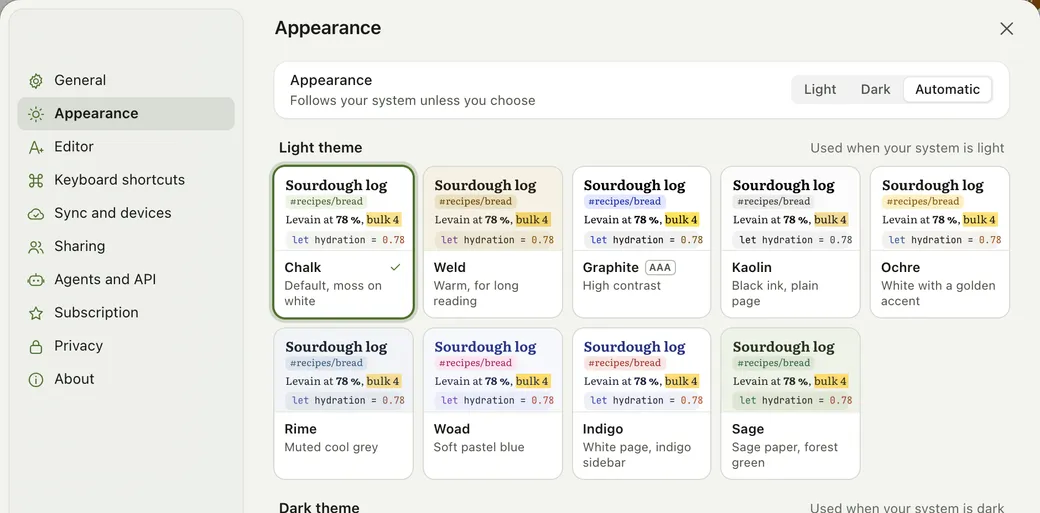
There are 22 themes: 9 light and 13 dark. Graphite and Lampblack are high-contrast, and Jet is true black for OLED screens. Every theme is free.
On iPhone, iPad and Android, open Settings › Editor theme to pick themes for light and dark mode, and Typeface for Literata, Atkinson Hyperlegible or JetBrains Mono. Text size follows your system’s text size.
What’s free
Everything here is on the Free plan, including every theme. Loam Pro adds sync across devices, collaboration, full version history, AI agents and publishing.
Related
Get new posts in your feed reader. Subscribe with RSS