
How to share a note and edit it together
To share a note in Loam, open it, choose Share, type someone’s email address and pick what they can do: Can edit, Can comment or Can view. Once they accept, you can work in the note together, and in the desktop and web apps you see each other’s changes as you type. Comments and @mentions let you talk things through next to the text. Only the note’s owner needs Loam Pro; the people you invite can be on the Free plan.
Before you start
- Your note needs to have synced, and you need to be online. Until then, the Share button says so.
- Sharing is a Pro feature for the note’s owner. On the Free plan, Share opens the Loam Pro screen instead.
- The steps below are for the desktop and web apps. The mobile version follows each section.
Invite people
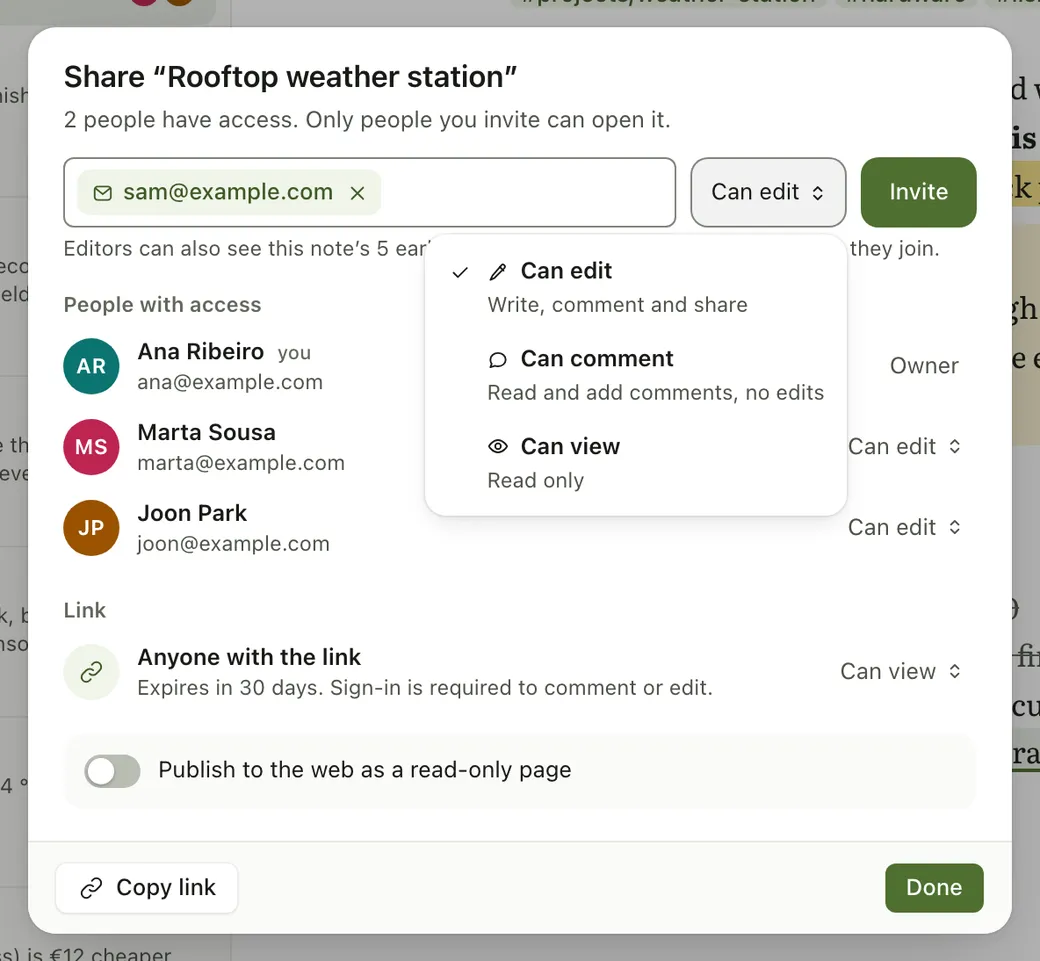
- Open the note and choose Share at the top right, or press ⇧⌘S (Ctrl+Shift+S).
- In Add people by email, type one or more addresses, separated by commas or spaces.
- Open the role menu next to the field and pick a role. Can edit lets people write, comment and share. Can comment lets them read and add comments without changing the text. Can view is read only.
- Choose Invite. Loam confirms: “Invitations sent. Nothing is shared until they accept.”
Each person gets an email with the subject “New shared note on Loam” and an Open invitation button. They accept with a Loam account for that email address. Anyone new can create a free account when they open it. Invitations expire after 14 days.
Editors can also read the note’s earlier versions, including text deleted before they joined, and the dialog reminds you of this before you invite one.
On iPhone, iPad and Android, open the note and tap Share and invite. On an iPad in split view, the button is called Share. Type an address under Invite by email, pick a role and tap Invite.
Share a whole folder
To share many notes at once, share the folder they’re in. Right-click a folder you own in the sidebar, or touch and hold it on iPhone, iPad or Android, choose Share… and invite people the same way. Each person gets that role on every note in the folder and its subfolders, including notes you add later, and finds the folder under Shared with me.
- A note shared on its own and through a folder gets the higher of the two roles.
- Only you add notes to the folder, rename it or move things around in it.
- Moving a note into a shared folder gives that folder’s people access to the note.
- Folders can’t be shared by link. Sharing a folder needs Loam Pro on your account, like sharing a note.
Change a role or remove someone
Everyone with access is listed under People with access.
To change someone’s role, open the menu next to their name and pick another one. Remove access in the same menu takes the note away from them at once. Pending invitations appear in the same list with a Resend link; to withdraw one, choose Cancel invitation from its menu.
On mobile, tap a person to change their role or remove them. Pending invitations have their own section with a Cancel button.
Share with a link
The Link section of the dialog creates a link for Anyone with the link. Pick its role (Can view by default), then choose Copy link at the bottom of the dialog.
Each link expires after 30 days. People need to sign in before they can comment or edit through it. Active links are listed in the dialog, and Turn off stops a link from opening the note. On mobile, Copy link always creates a view-only link.
Write together
Once people accept, everyone in the note sees changes as they’re typed in the desktop and web apps:
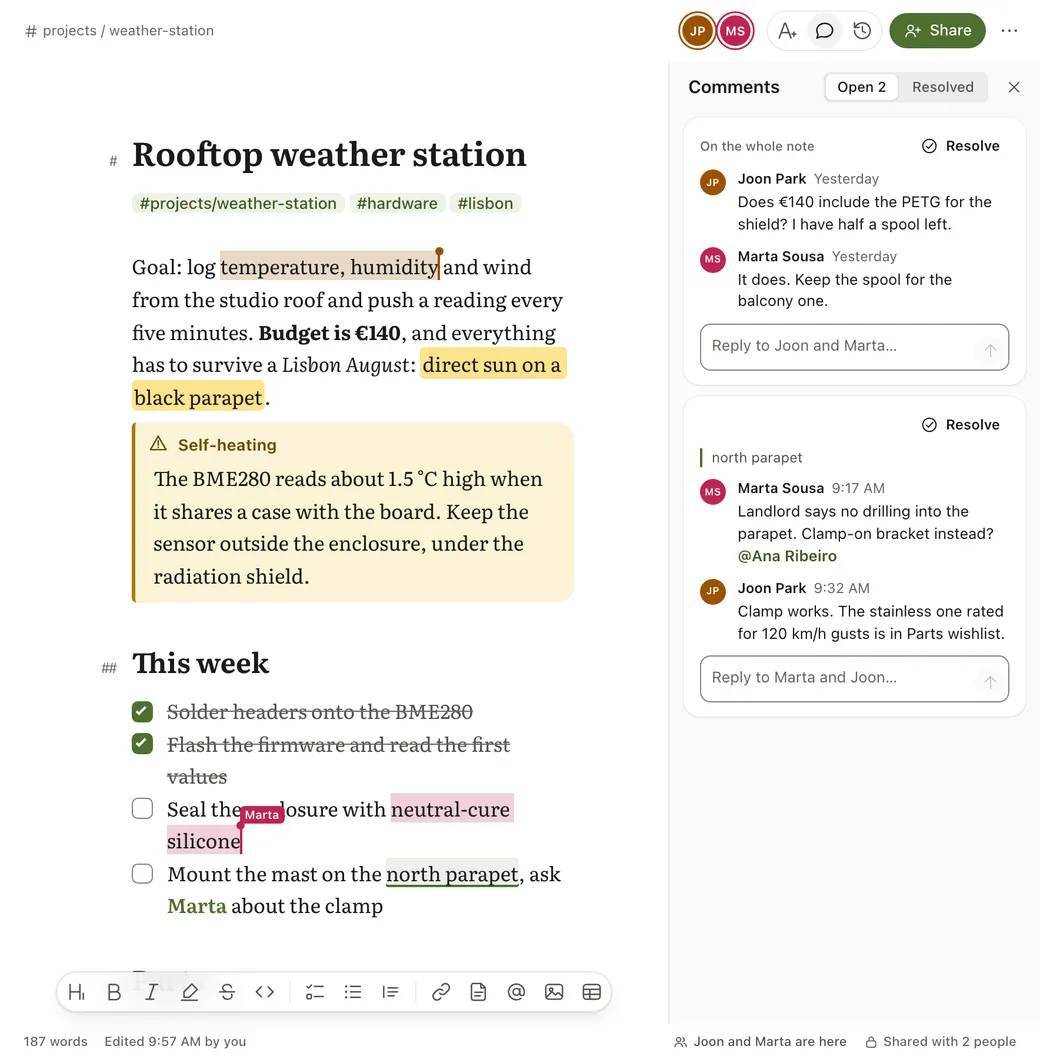
- The avatars at the top show who has access. Click them to see who’s in the note right now.
- Each person writes with their own coloured caret, which briefly shows their first name.
- The bar at the bottom says who’s with you, for example “Joon and Marta are here”.
Comment on the text
- Select the words you want to talk about.
- Press ⌥⌘M (Ctrl+Alt+M), or choose Format › Comment.
- Type your comment and choose Comment, or press ⌘Return.
The speech-bubble button in the note toolbar opens the Comments panel. It has two tabs, Open and Resolved. Reply in a thread, choose Resolve when the discussion is finished, and Reopen if it isn’t. Owners, editors and commenters can comment. Viewers can only read.
The mobile apps don’t have a Comments panel yet. When a comment notification arrives on your phone, you can answer it from the notification with Reply.
Mention someone
Type @ and the start of a name, in a comment or in the note itself, then pick the person from the list. You can mention the note’s owner, its editors and its commenters, but not viewers. On mobile, the format bar has a Mention button.
The person you mention gets a push notification, or an email if none of their devices can receive one. A mention in the note’s text notifies each person at most once a day for that note. Edits made by an AI agent never notify anyone. To stop mention emails, use the Turn off mention emails link at the bottom of any of them.
If something goes wrong
Loam keeps versions of the note as everyone works. If someone changes something by mistake, open Version history in the desktop or web app (⌥⌘Y, or Ctrl+Alt+Y) and restore an earlier version. Restoring adds a new version, so nothing anyone wrote is lost.
Related
Get new posts in your feed reader. Subscribe with RSS