
How to use Loam on every device, with sync
Loam has apps for Mac, Linux, iPhone, iPad and Android, plus a web app that runs in any modern browser. The editor is the same everywhere. Keeping your notes in sync across all of them takes Loam Pro; on the Free plan, Loam works fully on one device. Below: how to install and sign in, how sync behaves on each plan, and what happens offline.
Install Loam
- On a Mac, download Loam from the site’s Download page. It runs on macOS 13 Ventura or later, on Apple silicon or Intel.
- On Linux, download the AppImage from the same page. It’s built for 64-bit Intel and AMD PCs.
- On iPhone and iPad, get Loam from the App Store. It needs iOS or iPadOS 16.4 or later.
- On Android, get Loam from Google Play. It needs Android 7.0 or later.
- In a browser, open the Loam web app, linked from the Every device page under Related below. There’s nothing to install.
The desktop app checks for updates itself. To check yourself, choose Check for Updates… from the Loam menu on a Mac or the Help menu on Linux.
Sign in
You use one Loam account everywhere.
- On a Mac or Linux, choose Continue in your browser. Loam opens its sign-in page in your browser; finish there and the app signs in. In the web app, the button is Continue to sign in.
- On iPhone, iPad and Android, choose Sign in with a passkey or Continue with email.
- On the sign-in page, use a passkey, or your email address and password. If you don’t have an account yet, create one there.
How sync works on each plan
Loam Pro syncs your notes on every device you sign in on, including the web app.
On the Free plan, your notes live on one device:
- In the desktop and web apps, Free syncs on one device. If you sign in on a second computer or in a browser while the first one has synced in the last 30 days, the second one doesn’t sync. It shows “Sync is part of Loam Pro. Free syncs on one device, and this isn’t it.”, and the notes you write there are saved on that device.
- On iPhone, iPad and Android, Free keeps your own notes on the phone or tablet and doesn’t sync them.
- Notes that other people share with you sync on every device, whatever your plan.
To check sync on a computer, open Settings (⌘, or Ctrl+,) › Sync and devices. Status shows when the device last synced and has a Sync now button. On this device shows how many notes are available offline. Devices lists every device that syncs with your account, with its platform and when it last synced. Choose Forget next to one you no longer use, on any plan.
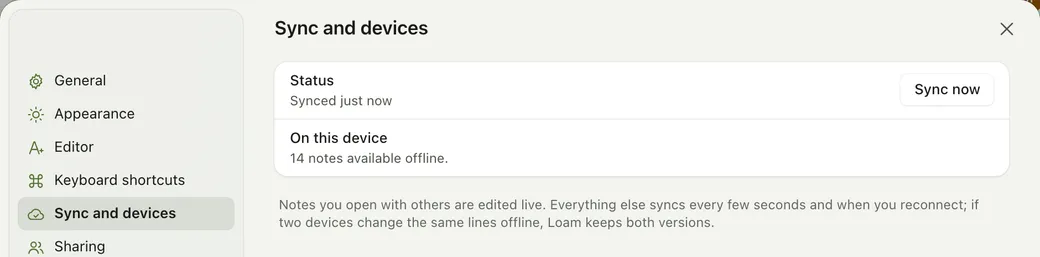
Move the Free sync to another computer
On the Free plan, one device syncs. To sync on a different computer instead:
- On the computer you want to use, open Settings › Sync and devices.
- Choose Use Loam here instead, then Sync here. The other device stops syncing and keeps its notes.
In the Mac and Linux apps, this step happens in the web app: choose Release in your browser, and finish it there.
Get Loam Pro
Loam Pro is US$2.99 a month or US$29.99 a year, and new subscribers get 14 days free.
- On a Mac, Linux or the web, open Settings › Subscription and choose See Pro. Checkout opens in your browser.
- On iPhone, iPad and Android, open Settings › Subscription and tap Upgrade to Loam Pro. You pay through the App Store or Google Play.
If you already subscribed on another device, use Restore purchases: it’s on the Pro screen on a computer and in Settings › Subscription on mobile.
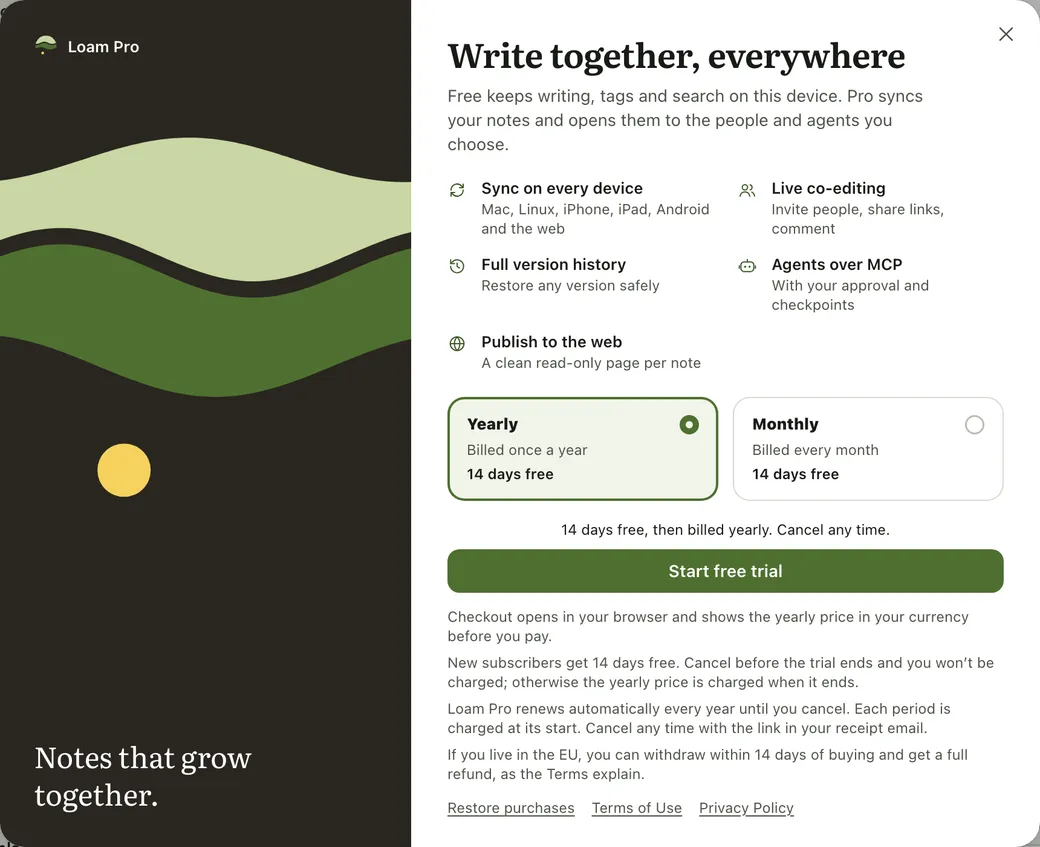
Work offline
You can write without a connection; Loam syncs your changes when you’re back online.
- In the desktop and web apps, the note shows Saved here while you’re offline, and the sidebar counts the notes saved on the device.
- If the same note changes on two devices while one is offline, Loam merges the changes. When the same lines changed on both, it keeps both versions. On a computer, Loam tells you your version was saved as a copy, and Show copy opens it. The mobile apps ask you to choose between Use the other version and Keep mine.
- The web app keeps a copy of your notes in the browser so you can work offline. Signing out removes that copy.
Small differences between the apps
Each app follows its platform, so a few things differ.
- On a Mac and Linux, the menu bar has the main commands (File › New Note, File › Export All Notes…, Edit › Find…). Press ⌃⌘S on a Mac, or Ctrl+Shift+1 on Linux, to show or hide the sidebar. Shortcuts can be changed in Settings › Keyboard shortcuts.
- The web app works like the desktop app, but New note is ⌘⌥N (Ctrl+Alt+N), because the browser keeps ⌘N.
- On an iPad with a keyboard, ⌘N makes a new note, ⌘F searches and ⌃⌘S toggles the sidebar.
- On iPhone and Android, a format bar sits above the keyboard. Comments and version history are in the desktop and web apps.
For the editor itself, see how to write and format notes. For tags and search, see how to organise notes.
Related
Get new posts in your feed reader. Subscribe with RSS