
How to restore a version or publish a note
Loam saves versions of a note while you work. In Version history you can see what changed, name the versions that matter and restore any of them, and a restore keeps the text it replaces. When a note is ready for other people to read, you can also publish it as a read-only web page. Version history is in the desktop and web apps; publishing works there and in the mobile apps.
Open version history
- Open the note.
- Choose the clock button in the note toolbar, or press ⌥⌘Y (Ctrl+Alt+Y). The command palette has Show version history too.
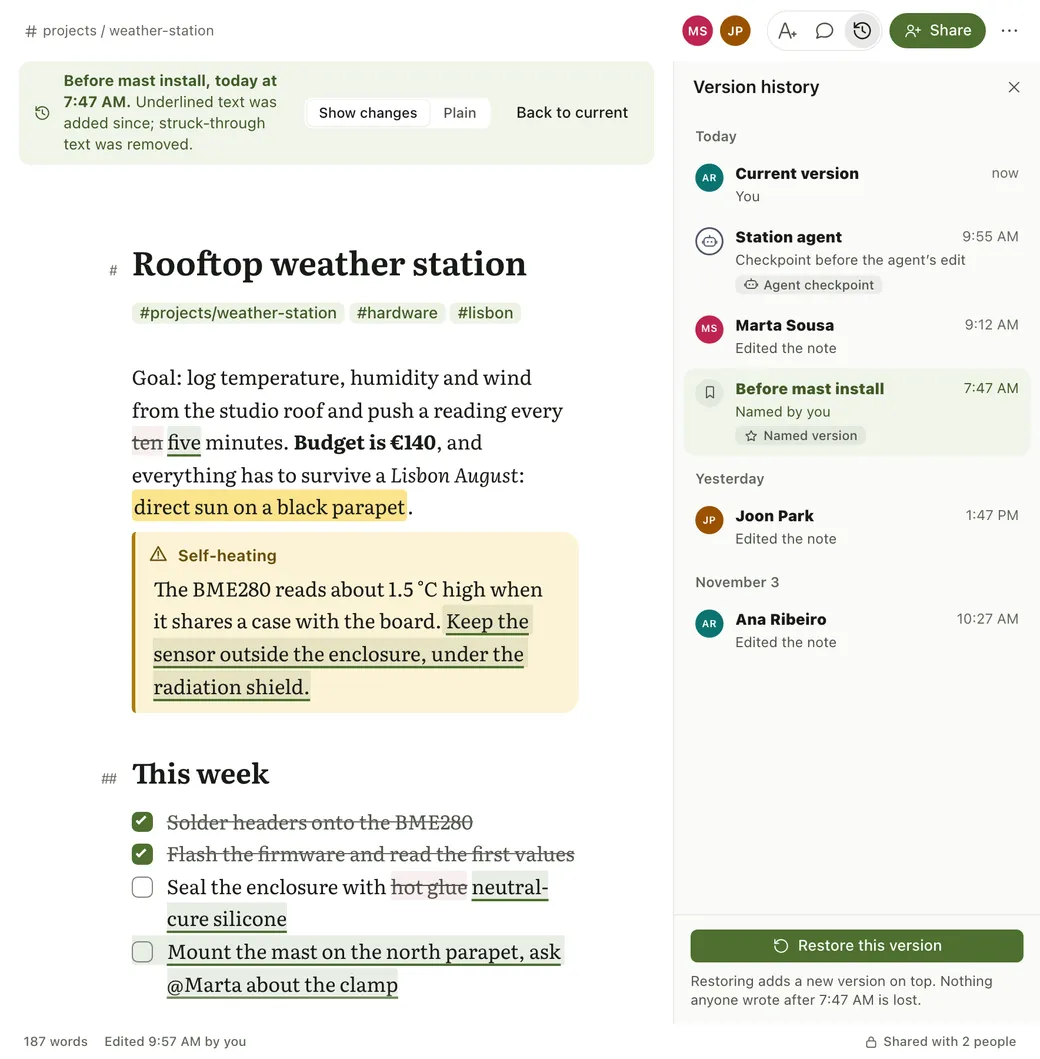
The Version history panel opens next to the note. Current version is at the top, and older versions are grouped under Today, Yesterday and earlier dates. Each one says who made it and what kind of version it is:
- Edited the note: saved automatically as someone wrote.
- Named version: a version someone gave a name.
- Agent checkpoint, with the line “Checkpoint before the agent’s edit”: saved just before an AI agent changed the note.
- Restored, with the line “Text before a restore”: the text as it was just before someone restored an older version.
- Published to the web: the text you published.
History needs a connection. The button tells you if the note hasn’t synced yet or you’re offline.
Compare a version with the current text
Select a version in the list and Loam shows it in place of the note, with two views to choose from at the top.
Show changes marks what changed since then: underlined text was added and struck-through text was removed. Plain shows that version as it was.
Choose Back to current to return to the note.
Restore a version
- Select the version you want.
- Choose Restore this version.
The old text comes back as a new version on top. The text you had before the restore is kept as a version of its own, so nothing anyone wrote after that point is lost, and you can undo the restore the same way. Version history is for the note’s owner and its editors: commenters and viewers can’t open or restore versions.
Name a version
Before a big rewrite, give the current text a name so it’s easy to find later:
- In Version history, choose Name this version, or press ⌥⌘S (Ctrl+Alt+S) from anywhere in the note.
- Type a name, such as “Before mast install”, and choose Save.
Named versions show a Named version badge in the list.
How much history you keep
On the Free plan, Version history shows the last 7 days. Loam Pro keeps all of it. The owner’s plan decides, so on a Pro owner’s note its editors see the full history too.
Publish a note to the web
A published note is a read-only page that anyone with the address can read, without a Loam account. Publishing is a Loam Pro feature, and only the note’s owner can do it.
In the desktop and web apps:
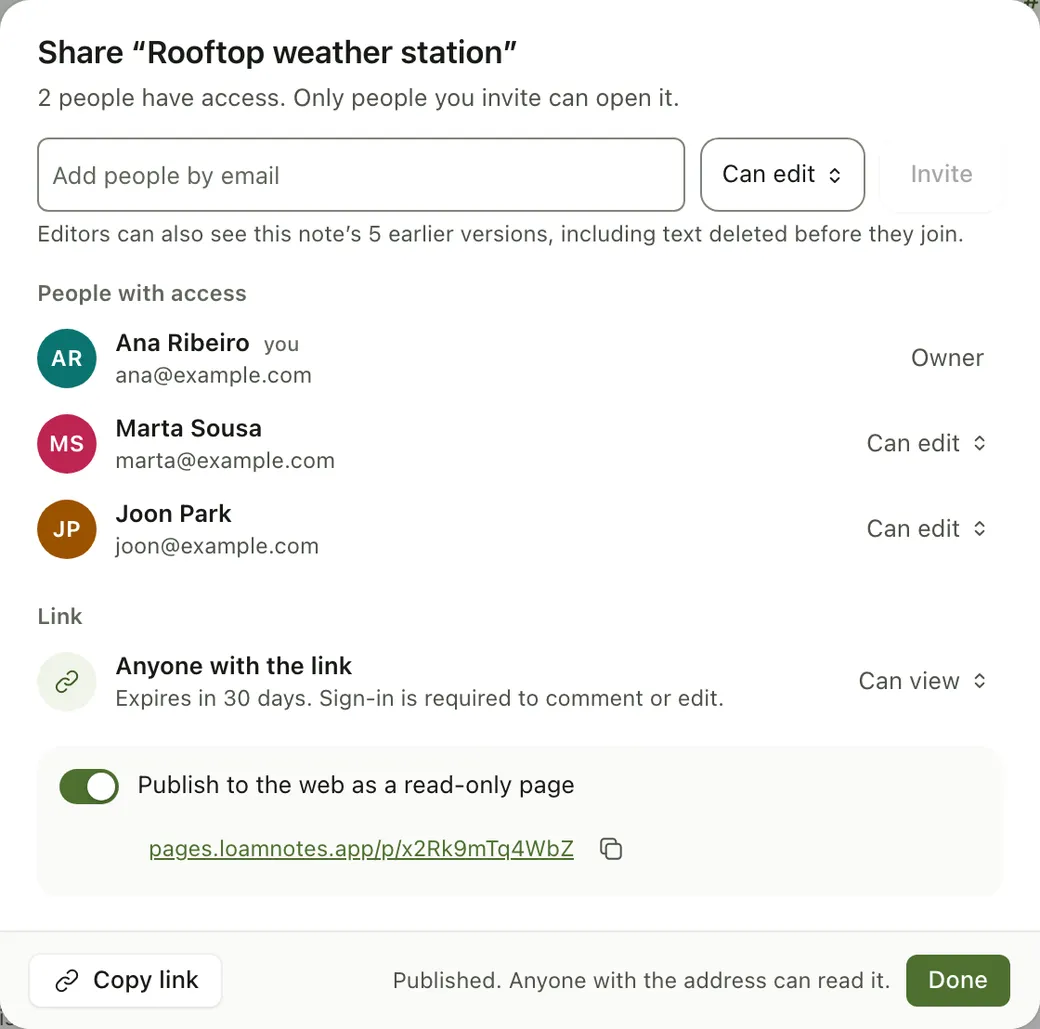
- Open the note and choose Share (⇧⌘S, or Ctrl+Shift+S).
- Turn on Publish to the web as a read-only page.
- Loam shows the page’s address, which looks like
pages.loamnotes.app/p/x2Rk9mTq4WbZ. Use the copy button next to it.
On iPhone, iPad and Android, open the note, tap Share and invite, then tap Publish to the web. The first tap publishes the note and copies the link. After that, the same row opens Copy link, Open page, Update page and Unpublish.
What readers see, and how to update it
The page is a snapshot. It shows the note as it was when you published, and it doesn’t change while you keep editing. To show your latest text, publish again: on mobile, tap Publish to the web and choose Update page. The address stays the same. Each publish also adds a Published to the web version to the note’s history.
Unpublish
Turn the switch off in the Share dialog, or choose Unpublish on mobile. The address then shows a page saying the note is no longer published. If your Pro plan ends, pages you’ve already published stay online, but you need Pro again to update them.
Related
Get new posts in your feed reader. Subscribe with RSS