
How to connect Claude or ChatGPT to your notes
Loam runs a remote MCP server at https://mcp.loamnotes.app/mcp. Add that address to an AI app that supports the Model Context Protocol, such as Claude, ChatGPT or Codex. Sign in to Loam, choose Allow, and the app can search, read and write your notes. Agent access needs Loam Pro. The steps below get you connected and show how to check, undo and disconnect; the MCP setup guide has every command and option.
Before you start
You need Loam Pro: Loam checks it on every request. Signing in works on any plan, but on Free the app can’t read or change your notes.
You also need the server address, https://mcp.loamnotes.app/mcp. The desktop and web apps show it under Settings › Agents and API › Server address. On iPhone, iPad and Android it’s under Settings › AI apps, with a Copy address button.
Connect Claude
On claude.ai or in Claude Desktop:
- Open Customize › Connectors and choose Add custom connector.
- Enter
https://mcp.loamnotes.app/mcpas the server URL and choose Add. - Choose Connect next to Loam. Claude opens Loam’s sign-in page. Sign in, check what Claude is asking for, and choose Allow.
- In a chat, turn Loam on from the + menu under Connectors, then ask about your notes.
Claude Desktop shares its connectors with claude.ai, so a connector you add on one shows up on the other.
In Claude Code, add the server from a terminal, then run /mcp, choose loam and sign in:
claude mcp add --transport http loam https://mcp.loamnotes.app/mcp
Connect ChatGPT or Codex
Loam isn’t in OpenAI’s plugin directory yet, so in ChatGPT you add it as a custom MCP server, in workspaces that allow it: open Plugins on the web, select the plus button, then Add custom MCP server, and enter https://mcp.loamnotes.app/mcp with OAuth sign-in. Sign in to Loam and choose Allow. Once Loam is listed, you’ll find it by searching Plugins for Loam Notes.
In Codex, run the command below. Codex opens Loam’s sign-in page and waits until you choose Allow.
codex mcp add loam --url https://mcp.loamnotes.app/mcp
Which ChatGPT plans can add a custom MCP server, and which get write access, is explained in the ChatGPT section of the setup guide.
What you approve
When an app connects, Loam shows a page titled “Allow [app] to use your Loam notes?”. It tells you who published the app, or warns you if the app is unverified, and lists what the app wants to do. Read the list, then choose Allow or Don’t allow.
The first connection asks to read and write your notes. That covers searching and reading notes, folders, tags, comments and history, creating and editing notes, creating, renaming and moving folders, moving notes between folders, commenting, restoring versions and moving notes to the trash.
Sharing is asked for separately, the first time the app tries to share a note or a folder, and you can say no. Moving a note or a folder into a folder you share with other people gives them access, so that move needs the sharing approval too. AI apps can’t delete folders. AI apps connected over MCP can move a note to the trash, where you can restore it, but they can’t delete it for good.
See and undo what an agent changed
An agent’s edits appear in the note live, like a collaborator’s. Before it edits, Loam saves a checkpoint. In the desktop and web apps, a message appears at the bottom of the note:

Undo puts the text back as it was before the agent’s edit and keeps the agent’s text as a version. Review opens Version history at the checkpoint, marked Agent checkpoint, which you can also restore later.
Comments an agent writes carry an Agent badge. Edits made by an agent never send notifications.
Disconnect an app
Every app you approved is listed under Connected apps, with what it can do and when it was last used.
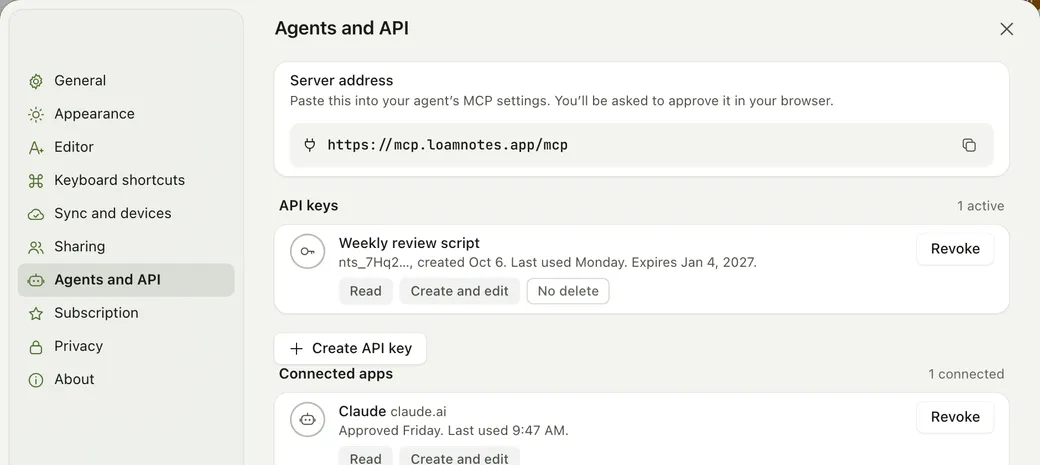
- In the web app, open Settings › Agents and API › Connected apps and choose Revoke, then Revoke now.
- In the Mac and Linux apps, the same section has Manage in your browser, which opens that list in the web app.
- On iPhone, iPad and Android, open Settings › AI apps and tap Disconnect.
The app loses access at once and has to ask for your approval again to come back. Removing Loam inside Claude or ChatGPT doesn’t end its access in Loam, so disconnect it here too.
Use an API key for scripts
A script or headless agent that can’t sign in in a browser can use a personal API key instead:
- In the desktop or web app, open Settings › Agents and API and choose Create API key. If you signed in to the desktop app more than five minutes ago, it asks you to sign in again first.
- Give it a Name, tick what it can do (Read, Create and edit, Delete, Sharing), and pick when it expires: 30 days, 90 days or 1 year.
- Choose Create key and copy the key now, because Loam won’t show it again.
The script sends the key as Authorization: Bearer followed by the key. To stop a key working, choose Revoke next to it. API keys need Loam Pro too. If you share notes with people, read how to share a note and edit it together to see how roles work alongside agents.
Related
Get new posts in your feed reader. Subscribe with RSS