
How to export your notes and add a passkey
Every Loam note is a standard Markdown file, and you can export all of them in one go at any time. You get a zip of .md files from the desktop and web apps, or a folder of them on iPhone, iPad and Android. Below are the steps for exporting, for adding a passkey so you can sign in without a password, and for deleting your account, plus a summary of who can read your notes.
Export all your notes
On a Mac, Linux or the web:
- Open Settings (⌘, or Ctrl+,) › General.
- Under Your notes, choose Export all notes…. On a Mac or Linux, File › Export All Notes… does the same.
- The desktop app asks where to save the zip. The web app downloads it.
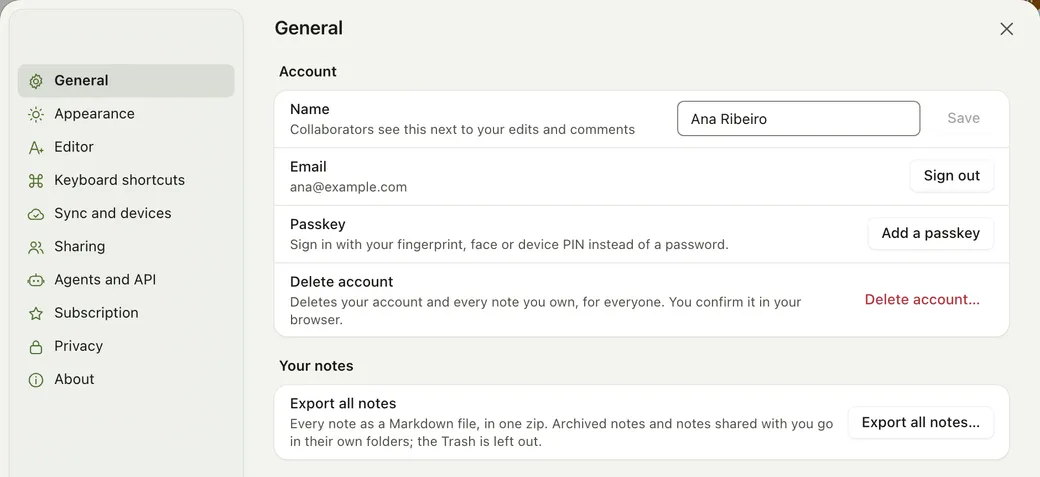
The zip is named after the day, for example Loam Export 2026-11-12.zip, and holds every note as a Markdown file. Archived notes go in an Archive folder and notes shared with you go in Shared with me. Notes in the Trash are left out.
On iPhone, iPad and Android:
- Open Settings and find the Library section.
- Tap Export all notes as Markdown.
- On iPhone and iPad, the files are saved in the Files app under On My iPhone (or On My iPad) › Loam. On Android, you choose a folder.
To export a single note, use Copy as Markdown in the note’s menu in the desktop and web apps, or Export as Markdown in the note’s More menu on mobile.
Because the files are plain Markdown, with GitHub-style tables and task lists, any Markdown app or text editor can open them.
Add a passkey
A passkey lets you sign in with your fingerprint, your face or your device PIN instead of a password, so there’s no password for anyone to steal.
- On a Mac, Linux or the web, open Settings › General and choose Add a passkey next to Passkey. On iPhone, iPad and Android, open Settings › Account and tap Add a passkey.
- Loam opens a page called Create a passkey. Choose the button to create it and follow your device’s prompt.
- If you signed in more than 10 minutes ago, Loam asks you to confirm it’s you first.
From then on, choose Sign in with a passkey on the sign-in page. Your email address and password still work too.
Who can read a note
- A new note is private: only you can open it until you share it.
- People you invite get the role you choose: Can edit, Can comment or Can view. You can change or remove it at any time from the Share dialog. Our sharing guide has the steps.
- A share link lets anyone you send it to open the note. To comment or edit through it, they sign in. A link works until it expires after 30 days or you turn it off.
- A published page is public to anyone with its address, and shows the text as it was when you published it. See how to publish a note.
- AI apps reach your notes only after you approve them, and only with what you approved. See how to connect Claude or ChatGPT.
Delete your account
Deleting your account can’t be undone, so export your notes first.
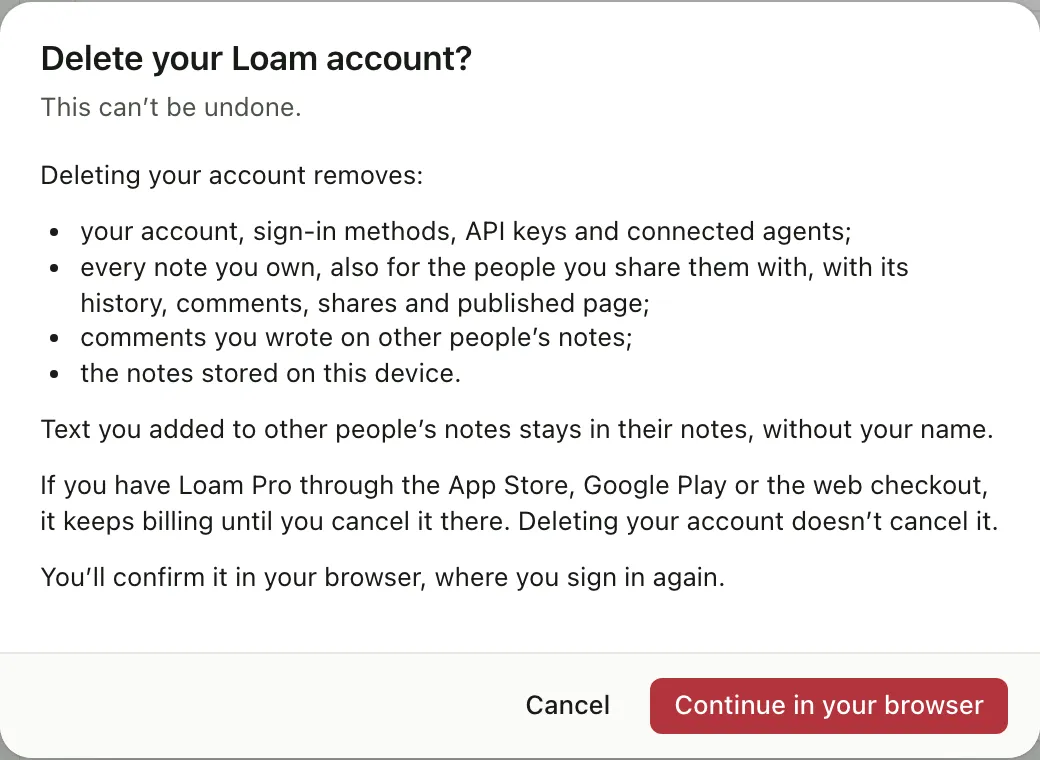
- On a Mac, Linux or the web, open Settings › General and choose Delete account…, read what will be removed, then choose Continue in your browser. On iPhone, iPad and Android, open Settings › Account and tap Delete account, then Continue.
- Loam opens its delete page in your browser and may ask you to sign in again.
- Type your email address to confirm, and choose Delete my account.
You can also go straight to the account deletion page.
When your account is deleted, every note you own is deleted too, including for the people you shared it with, along with the comments you wrote anywhere. Text you added to other people’s notes stays there, without your name.
Deleting your account doesn’t cancel a Loam Pro subscription. Cancel it in your App Store or Google Play subscriptions, or from your receipt email if you subscribed on the web.
If you have questions about your account or your data, Support lists how to reach us.
Related
Get new posts in your feed reader. Subscribe with RSS